
Introduction
Managing a large collection of mobile games can become difficult when your phone contains dozens of titles. You might have action games, racing simulators, puzzle challenges, multiplayer adventures, and offline games installed on the same device. Finding the game you want to play can take longer than expected, especially when your home screen is crowded with apps and folders.
This is where Game Launcher Apps can make a difference. These tools help you bring your gaming collection into one place, making it easier to find your favourite titles and manage your gaming activities. Depending on the app and your device, you may also get features such as performance monitoring, notification controls, screen recording, and shortcuts to useful gaming tools.
Understanding how these apps operate helps you choose a suitable option for your gaming habits. With the right setup, you can spend less time managing your collection and more time enjoying your games.
What Are Game Launcher Apps?
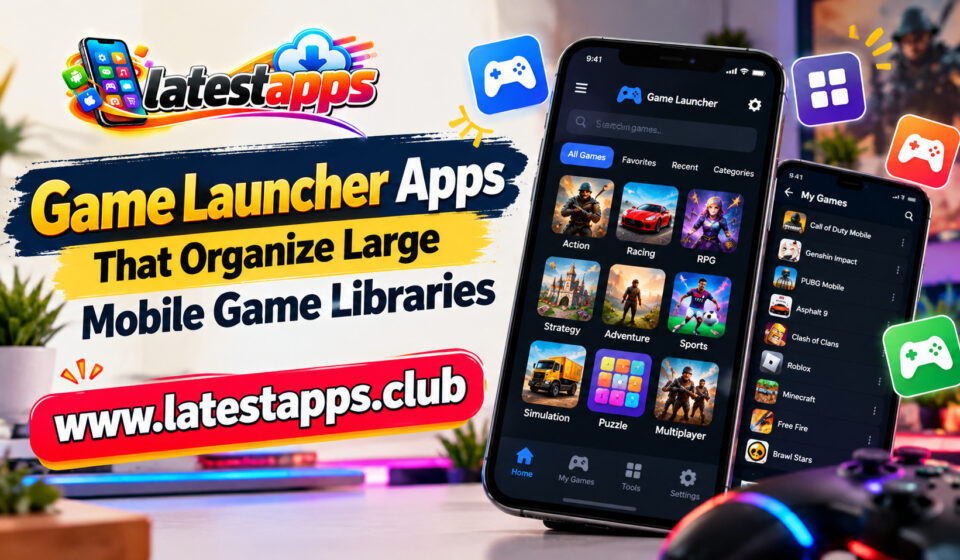
Game Launcher Apps are applications that provide a dedicated space for accessing and organizing mobile games. Instead of opening each game through your phone’s regular app drawer, you can use a central interface to view supported games and launch them directly.
Some launchers focus mainly on organization, while others include additional gaming features. For example, a launcher might group your games automatically, display recently played titles, or provide shortcuts for recording gameplay.
You can find built-in gaming hubs on certain Android smartphones, as well as third-party launchers available through app stores.
It is also important to understand the difference between a game launcher and a general Android home screen launcher. A home screen launcher changes how you access apps across your phone, whereas a dedicated gaming launcher concentrates on your gaming collection.
Choose the right game streaming app for your device.
Why You Need a Launcher for a Large Game Library
When you install only a few games, finding them is usually simple. However, maintaining a library of 30, 50, or even more games creates a different challenge.
A dedicated launcher can help solve several common problems.
Faster Access to Your Favourite Games
Searching through several home screen pages can become frustrating when you want to start playing immediately. A gaming hub gives you a central location for accessing your installed titles.
You can also benefit from recently played lists or favourites sections when these features are supported. Instead of scrolling through your entire collection, you can open frequently played games with fewer steps.
Better Organization
Your gaming collection may include several categories, such as strategy, racing, role-playing, casual, and multiplayer games. A launcher with suitable sorting or grouping options helps you keep these titles organized.
Some applications automatically detect installed games, while others allow you to add or arrange titles manually. This flexibility becomes useful when your library grows over time.
A More Focused Gaming Experience
Gaming notifications can interrupt an important match or distract you during a difficult level. Certain gaming hubs include notification controls, focus modes, or shortcuts to system settings.
These features help you reduce interruptions while playing. However, notification blocking is not available in every launcher, so you should check the features before installing an app.
Popular Game Launcher Apps to Consider
Several options can help you organize your mobile gaming experience. The best choice depends on whether you prefer a built-in gaming hub, a performance-focused interface, or a customizable home screen.
1. Google Play Games
Google Play Games is useful if you want a convenient way to discover games and access supported gaming features associated with your Google account.
Depending on the game, you may be able to view achievements, compare progress, or access saved game information. Some supported titles also use Google Play Games services for cloud-based progress synchronization.
However, it is not a complete replacement for every dedicated game launcher. Its primary purpose is broader gaming discovery and related services rather than advanced organization of every installed game.
Choose this option if you value achievements, gaming profiles, and convenient access to supported games.
2. Samsung Gaming Hub
Samsung Gaming Hub is a gaming platform available on supported Samsung devices and software versions. It can provide a centralized place to access games and gaming-related content.
Its exact interface and capabilities depend on your device, region, and software version. On supported phones, it may integrate with Samsung’s gaming features and related services.
If you use a compatible Samsung smartphone, check whether Gaming Hub is already installed or available through your device’s settings. Using the built-in option may be more convenient than adding another application.
3. Xiaomi Game Turbo
Its focus is generally on improving the gaming experience through tools such as performance-related controls, shortcuts, and notification management. The available options can differ across devices.
Although Game Turbo is useful for managing gaming sessions, it should not be confused with a universal library organizer that works on every Android phone.
If you own a compatible Xiaomi device, explore its gaming settings before looking for a third-party alternative.
4. Microsoft Launcher
Microsoft Launcher is a general Android home screen launcher rather than a dedicated gaming application. Nevertheless, it can help you organize a large game collection.
You can arrange game icons into folders, customize your home screen, and keep gaming shortcuts together. This approach works well if you prefer manual organization and want a consistent interface for both gaming and everyday apps.
The main limitation is that you should not expect specialized gaming functions simply because you organize games in one place.
Consider this option if your main goal is to reduce home screen clutter and create a cleaner layout.
5. Nova Launcher
Nova Launcher is another general Android launcher known for home screen customization. Depending on the available version and features, you can use folders, app drawer organization, and customized layouts to keep your games accessible.
For example, you might create separate folders for racing games, multiplayer titles, and offline adventures. You can then place your most frequently played games in a prominent location.
Nova Launcher does not automatically provide every gaming-specific feature. Its usefulness comes mainly from the ability to customize how you access and arrange applications.
Before choosing a launcher, review its current compatibility, pricing, and feature availability.
Features to Look for in a Game Launcher
Not every feature is equally important for every player. If your primary concern is organizing a large collection, prioritize the tools that reduce unnecessary searching.
Automatic Game Detection
Automatic detection can save time by identifying supported games installed on your device. Instead of adding every title manually, you can begin with a collection assembled by the launcher.
However, some applications may not recognize every game. You should also check whether newly installed games appear automatically.
Custom Folders and Categories
Categories make a large collection easier to navigate. Look for options that let you group games according to genre, playing frequency, or personal preference.
You could create categories such as:
- Competitive games: Multiplayer shooters and online battle games.
- Casual games: Puzzle titles and quick arcade experiences.
- Adventure games: Role-playing games and story-driven adventures.
- Offline games: Titles you can play without a continuous internet connection.
- Recently played: Games you have opened during your latest sessions.
Even a simple folder system can make a noticeable difference when you manage dozens of titles.
Search and Sorting Options
Search becomes increasingly valuable as your collection grows. If you have 60 games installed, typing a title into a search field can be quicker than scrolling through several screens.
Sorting options can provide additional convenience. Depending on the launcher, you may be able to arrange games alphabetically, by recent activity, or through custom ordering.
Performance and Gaming Controls
Some gaming utilities offer shortcuts for screen recording, screenshots, performance information, or notification management.
These tools can be useful if you frequently play demanding games or record gameplay. Nevertheless, a launcher cannot guarantee higher frame rates simply by organizing your library. Actual performance depends on your phone’s hardware, software, temperature, and the game itself.
How to Organize a Large Mobile Game Library
Installing a launcher is only the first step. A little organization can make your gaming collection easier to maintain.
Step 1: Review Your Installed Games
Start by checking which games you actually play. Remove titles you no longer need if you want to free up storage space.
Before uninstalling a game, verify whether your progress is saved through an account or cloud service. Local-only progress may be lost when you remove the application.
Step 2: Choose a Suitable Launcher
Select a launcher that works with your phone and supports the features you need. If your device already includes a gaming hub, test it before installing another application.
For basic organization, a customizable home screen may be sufficient. If you want gaming controls, a manufacturer-provided gaming utility might be more appropriate.
Step 3: Create Useful Categories
Avoid creating too many folders because excessive categorization can make navigation harder. Start with three or four groups that reflect how you play.
For example, separate competitive games, casual titles, story-driven adventures, and offline options. Adjust the categories when your collection changes.
Step 4: Keep Frequently Played Games Accessible
Place your favourite games near the top of your launcher or in a dedicated favourites section when supported.
You can also create a separate folder for games you play daily. This approach keeps your most important titles accessible without forcing you to browse the entire collection.
Step 5: Review Your Setup Regularly
New games can quickly make an organized library cluttered again. Spend a few minutes every month reviewing installed titles and updating your categories.
Remove unnecessary shortcuts, archive games you rarely play when your device supports that option, and check whether your launcher still meets your needs.
Are Third-Party Game Launchers Safe?
You should consider privacy and security before installing any third-party launcher. An application that only arranges shortcuts may require relatively few permissions, while a gaming utility offering overlays, usage statistics, or other advanced functions might request additional access.
Before installation, review the developer information, recent reviews, privacy policy, and requested permissions. Avoid granting access that appears unrelated to the application’s purpose.
You should also download applications from reputable sources and keep your phone’s operating system updated.
Another consideration is battery consumption. Some launchers run background services or display additional content, which may affect resource usage. If your phone becomes slower or battery life declines after installation, review the app’s settings or consider switching to a simpler option.
Common Mistakes to Avoid
A launcher should simplify your gaming experience, not create another layer of complexity.
Avoid installing several launchers at the same time unless you have a clear reason to do so. Multiple tools can duplicate features and make it harder to maintain a consistent layout.
You should also avoid choosing an application solely because it advertises performance improvements. Library organization, device optimization, and game performance are different things.
Finally, do not assume every launcher supports all installed games or provides identical features across Android devices. Check compatibility before relying on a particular function.
Discover strategy games that reward careful planning.
Key Takeaways
- Game Launcher Apps help you access and organize a large collection of mobile games.
- Built-in gaming hubs may provide convenient features without requiring another installation.
- Custom folders, search tools, and favourites make navigation easier.
- Performance controls depend on the launcher and your smartphone.
- Permission checks and regular maintenance help you keep your setup secure and organized.
Frequently Asked Questions
1. What are Game Launcher Apps used for?
Game Launcher Apps help you access, organize, and manage mobile games through a dedicated interface or customized app layout.
2. Can a game launcher improve gaming performance?
Some gaming utilities provide performance-related controls, but a launcher alone cannot guarantee better frame rates or smoother gameplay.
3. Are game launchers available for Android phones?
Yes, Android users can choose from manufacturer-provided gaming hubs and third-party launchers, depending on their devices and software compatibility.
4. Do game launchers delete installed games?
Most launchers organize access to games rather than deleting them, although storage-management features may be available in some applications.
5. Which features matter most when choosing a game launcher?
Automatic game detection, custom folders, search, favourites, compatibility, and useful gaming controls are among the most important features to consider.
Conclusion
Managing a large mobile game collection does not have to be complicated. With the right Game Launcher Apps, you can keep your favourite titles accessible, separate games into meaningful categories, and reduce the clutter on your phone’s home screen.
Your ideal choice depends on your device and gaming habits. A built-in gaming hub may suit you if you want convenient access to gaming tools, while a customizable home screen launcher can work well if organization is your main priority.
Start by reviewing your installed games, selecting a suitable launcher, and creating a simple category system. As your collection grows, maintain that structure and remove games you no longer use. These small changes can make your mobile gaming library easier to navigate and more enjoyable to manage.